Microsoft 365
Microsoft 365, formerly Office 365, is a product family of productivity software, collaboration and cloud-based services owned by Microsoft. This Adapter allows you to ingest audit events from the Office 365 Management Activity API.
Microsoft 365 events can be ingested in LimaCharlie and observed as the office365 platform.
Note on naming: The platform identifier
office365reflects the legacy product name. Microsoft renamed Office 365 to Microsoft 365 in 2020.
Adapter Deployment
Microsoft 365 events are ingested via a cloud-to-cloud Adapter configured specifically to review M365 events. When creating an Adapter, the following data points are required:
domain: Office 365 domaintenant_id: Office 365 tenant IDpublisher_id: Office 365 publisher ID (for single-tenant Apps, the PublisherID is the same as the Tenant ID)client_id: Office 365 client IDclient_secret: Office 365 client secretendpoint: Office 365 API endpoint-
content_types: content types of events to ingest. -
Options include:
Content Type Description Audit.AzureActiveDirectoryUser and admin activities in Azure AD: sign-ins, password changes, group/user management, app consent, directory role changes Audit.ExchangeMailbox activities: message access, send/receive, folder operations, delegate permissions, mailbox audit events Audit.SharePointSharePoint and OneDrive activities: file access, downloads, sharing, site administration, permissions changes Audit.GeneralActivities from other workloads: Microsoft Teams, Power BI, Dynamics 365, Yammer, Stream, and other M365 services DLP.AllData Loss Prevention events: policy matches, alerts when sensitive data is detected in documents or emails -
Default is all of the above
For the complete list of audit activities by workload, see Microsoft's audit log activities documentation.
If creating a Microsoft 365 Adapter via the Web UI, the helper form will navigate you through providing these values.
Establishing a cloud-to-cloud connector between LimaCharlie and Office 365 requires a few steps to provide the correct permissions for the Office 365 Management Activity API.
Infrastructure as Code Deployment
# Office 365 Management Activity API Specific Docs: https://docs.limacharlie.io/docs/adapter-types-office-365-management-activity-api
# For cloud sensor deployment, store credentials as hive secrets:

#   tenant_id: "hive://secret/o365-tenant-id"
#   client_id: "hive://secret/o365-client-id"
#   client_secret: "hive://secret/o365-client-secret"

sensor_type: "office365"
office365:
  tenant_id: "hive://secret/azure-o365-tenant-id"
  client_id: "hive://secret/azure-o365-client-id"
  client_secret: "hive://secret/azure-o365-client-secret"
  client_options:
    identity:
      oid: "xxxxxxxx-xxxx-xxxx-xxxx-xxxxxxxxxxxx"
      installation_key: "YOUR_LC_INSTALLATION_KEY_O365"
    hostname: "ms-o365-adapter"
    platform: "json"
    sensor_seed_key: "office365-audit-sensor"
    mapping:
      sensor_hostname_path: "ClientIP"
      event_type_path: "Operation"
      event_time_path: "CreationTime"
    indexing: []
  # Office 365 specific configuration
  content_types:
    - "Audit.AzureActiveDirectory"
    - "Audit.Exchange"
    - "Audit.SharePoint"
    - "Audit.General"
    - "DLP.All"
  # Optional configuration
  endpoint: "enterprise"                           # Default: "enterprise"
  start_time: "2024-01-01T00:00:00Z"              # Optional: historical start time
  domain: "yourcompany.onmicrosoft.com"           # Optional: for GCC environments
  publisher_id: "hive://secret/o365-publisher-id" # Optional: usually same as tenant_id
Configuring a Microsoft 365 Adapter in the Web UI
Preparing Office 365 details
To establish an Office 365 adapter, we will need to complete a few steps within the Azure portal. Ensure that you have the correct permissions to set up a new App registration.
- Within the Microsoft Azure portal, create a new App registration. You can follow Microsoft's Quickstart guide here.
- The LimaCharlie connector requires a secret for Office 365 data. You can create one under
Certificates & secrets. Be sure to copy this value and save it somewhere - you can only view it once.

-
Additionally, you'll need to ensure that the app has the correct permissions to view Office 365 data via the Management API. Within
API Permissions, configure the following permissions: -
ActivityFeed.Read(Delegated & Application) ActivityFeed.ReadDlp(Delegated & Application) [if you want DLP permissions]
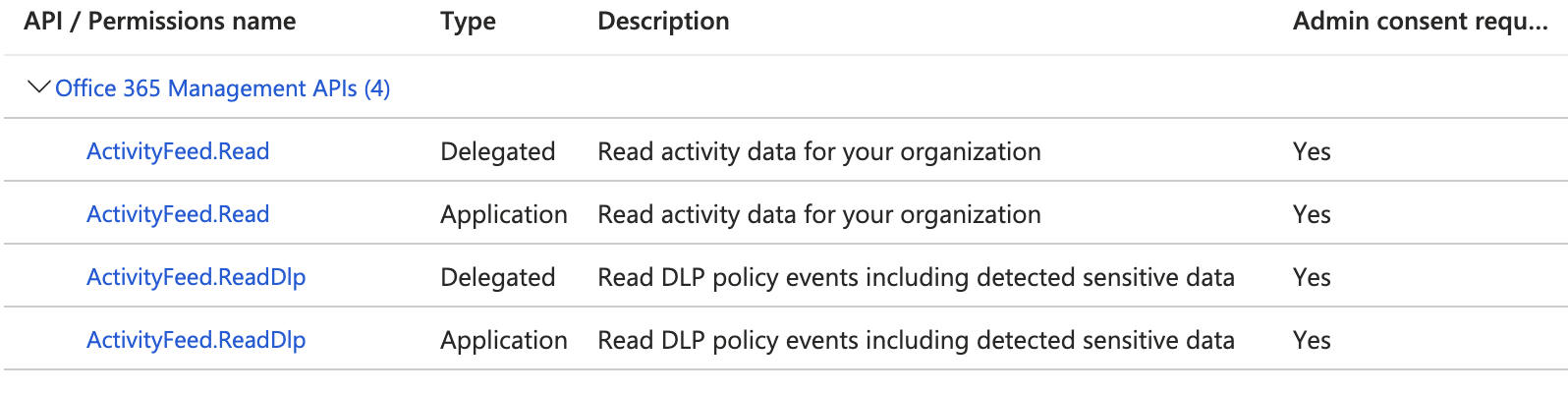
Additionally, you may need to grant admin consent to the above permissions.
At this point, you should have all the details you need to configure the Adapter.
Setting Up the Adapter
Within the LimaCharlie web application, select + Add Sensor, and then select Office 365:
You can select a pre-existing Installation Key or create a new one, unique for this adapter. Once an Installation Key is selected, you will be prompted with a form to finish setting up the adapter. Choose your desired adapter name, and provide the following values:
| Item | Azure Portal Location |
|---|---|
| Domain | Home |
| Tenant ID | App Registration Overview |
| Publisher ID | App Registration Overview |
| Client ID | App Registration Overview |
| Client Secret | Created during creation in Certificates & secrets |
| API Endpoint | enterprise, gcc-gov, gcc-high-gov, or dod-gov |
Finally, you will also need to select a "Content Type" to import. This is the type of events you want to bring in to LimaCharlie. The options are as follows:
Audit.AzureActiveDirectoryAudit.ExchangeAudit.SharePointAudit.GeneralDLP.All
Without a value, the default is all of the above.
Click Complete Cloud Installation, and LimaCharlie will attempt to connect to the Microsoft Office 365 Management API and pull events.
Sample Rule
When ingested into LimaCharlie, Office 365 data can be referenced directly in your D&R rules. You could do this via a platform operator:
We can also reference Office 365 events directly. The following sample rule looks at FileAccessed events from anonymous user names, and reports accordingly.
# Detection
event: FileAccessed
path: event/UserId
op: contains
value: anon

# Response
- action: report
  name: OneDrive File Accessed by Anonymous User
Note that in the detection above, we pivot on the FileAccessed event, which is associated with SharePoint activity. Available event types will depend on source activity and events ingested. More information on audit log activities can be found here.